

AI New Year Video Generator

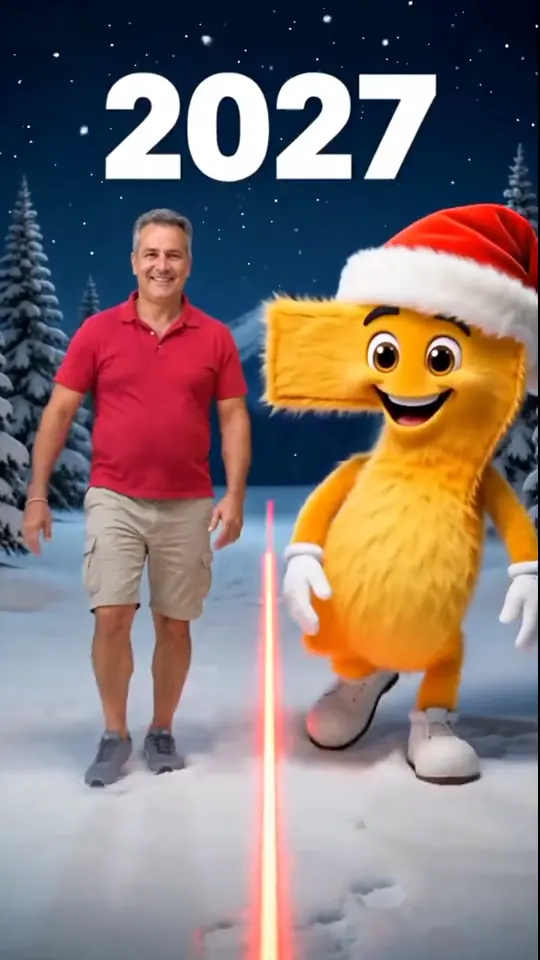
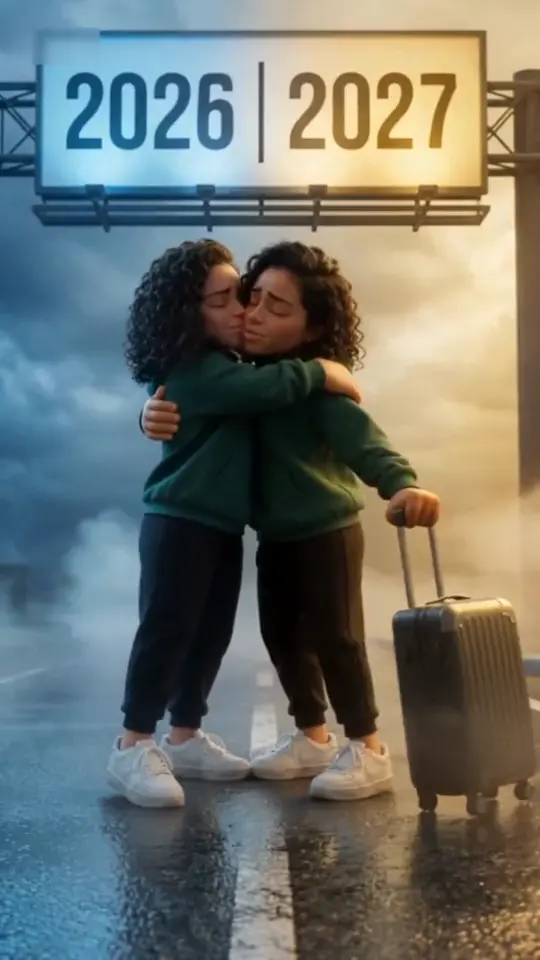
Make an AI New Year video from one photo. Write your own scene, or pick a template and climb a giant 2027, meet the 7 or hug your 2026 self goodbye.

Your scene

Describe your scene

Pick a template

What it makes

What is the AI New Year video trend?

An AI New Year video puts you into the turn of the year. Write the scene, a countdown on a rooftop, a champagne toast at midnight, a goodbye to a glowing 2026 that turns into 2027, add your photos, and the fireworks and the city lights come with it.

Last New Year a goodbye to 2025 under a sign with both years on it went round TikTok, and a countdown video at the Burj Khalifa passed 27 million plays. This year make your own goodbye 2026 welcome 2027 video, or send one as your New Year wishes.
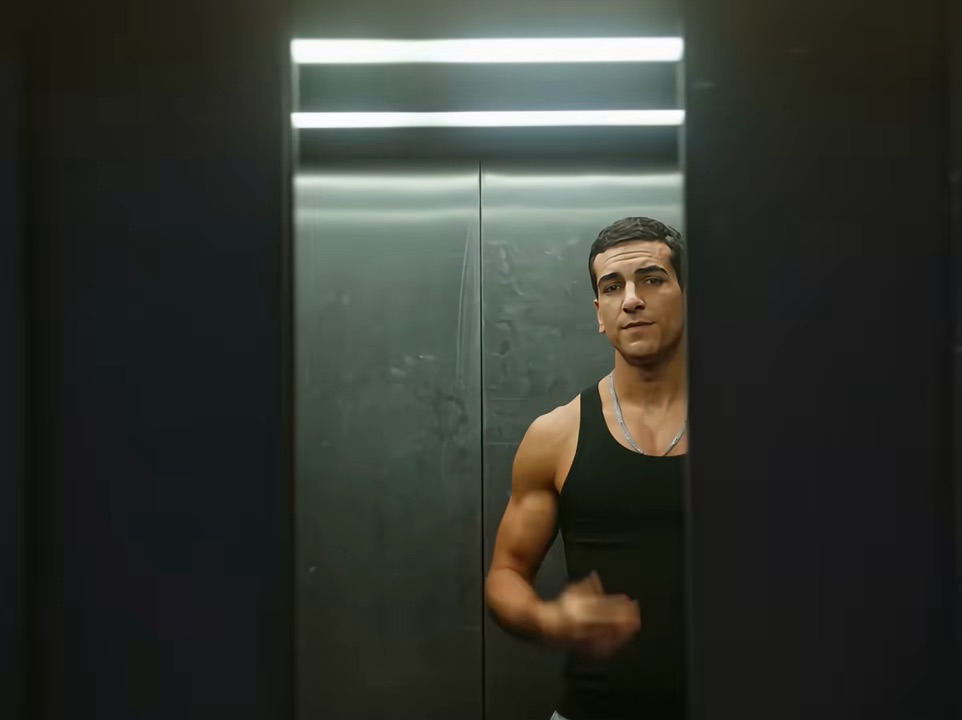
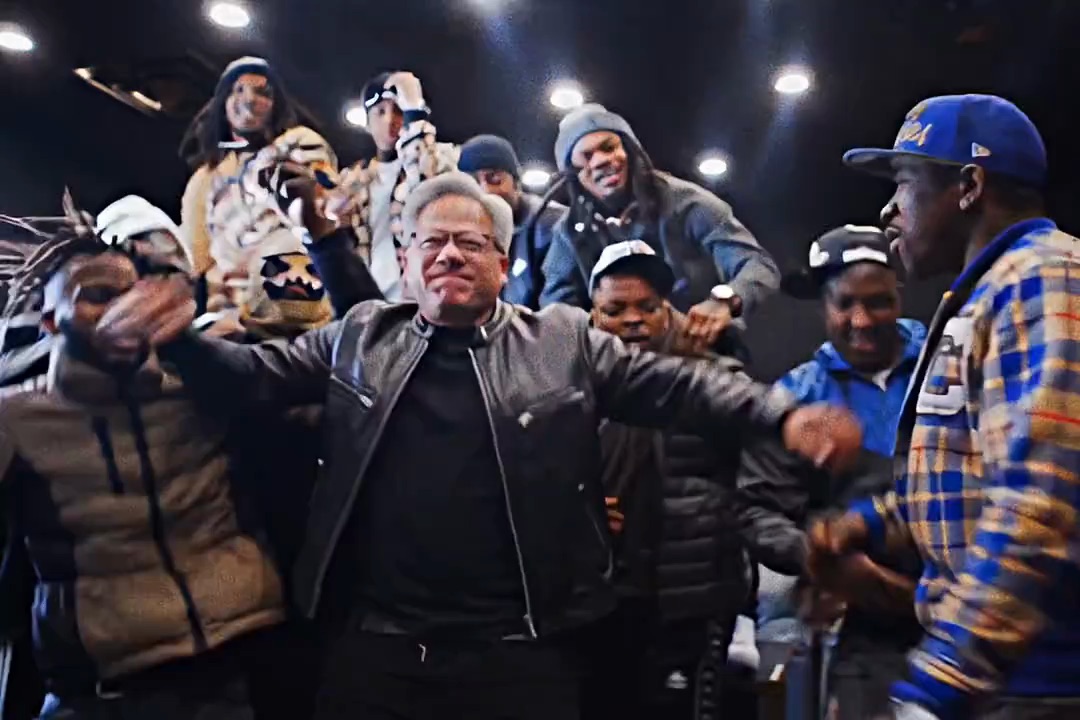
Three ways in

How to make an AI New Year video

This AI New Year video maker needs no app and no editing: write the scene, add your photos, and the fireworks and the city lights come with it.

  • Only wordsWrite the scene and nothing else; the people and the place are made up for you.
  • Your photosAdd up to three: the people, or the place, in them are the ones in the video.
  • Your own clipUpload 2 to 15 seconds and it comes back in the New Year look, with the same moves and sound.
Only words

We count down on a rooftop and fireworks burst over the city at midnight

Sample photo: a man in a red polo shirt and shorts standing and smiling, full length, face clearly visible Your photos
Your clip2–15 s
Your New Year video
Your New Year video

Writing

How to write your New Year scene

One or two plain sentences are enough. The New Year look is already in every video.

Too vague

A New Year video with me

  • 01Say who is in itThe people in your photos are the ones in the video; say what each of them does.
  • 02Say whereA street, a living room, a rooftop: the place sets the light and the mood.
  • 03Say what happensOne moment that moves: something arrives, someone turns, the lights go on.
  • 04Leave the style outYou do not need to describe the look, the camera or the colours; they come with the page.

Your photo

Which photo to use for a New Year video

The people in your photos are the ones in the video, head to toe, so a full-length photo with a clear face works best. Add up to three.

  • Sample photo: a man in a red polo shirt and shorts standing and smiling, full length, face clearly visible
    Clear face, good light
  • Face in shadowTryTurn toward a window
    Face in shadow
  • Heavy filterTryUse the original photo
    Heavy filter
  • Face too smallTryStep closer: waist-up or full length
    Face too small

Works

  • Full length if you have it
  • Face clear and front-on
  • Good light, no heavy filters

Skip

  • Sunglasses or a hand over the face
  • A tiny face far away
  • Dark or blurry shots

Fixes

If your New Year video looks off

You are small for part of some templates and a 3D figure in one, so most fixes start with the photo.

  • It does not look like me

    Use a sharp photo, face clear and front-on, in good light, and make it again.

  • My clothes came out wrong

    Use a photo that shows what you are wearing from head to toe.

  • The scene is not what I wrote

    Say it in one or two plain sentences: who, where, what happens. Then make it again.

  • The video did not render

    The credits go back on their own. Add the photo again and press the button.

Pricing

Pay once, spend on any trend

One-time packs, no subscription. Credits never expire and come back if a render fails.

Starter

$9.90

15 credits per $1

150 credits

15 s of video

  • Trends, text and image to video
  • No watermark
  • Credits never expire
Most popular

Creator

$29.90

23.5 credits per $1 · 56% more

700 credits

1 min 10 s of video

  • Trends, text and image to video
  • No watermark
  • Credits never expire

Pro

$59.90

26.5 credits per $1 · 76% more

1,600 credits

2 min 40 s of video

  • Trends, text and image to video
  • No watermark
  • Credits never expire
Best value

Studio

$299

30 credits per $1 · 100% more

9,000 credits

15 min of video

  • Trends, text and image to video
  • No watermark
  • Credits never expire

AI New Year Video FAQ

How do I make a New Year AI video?

Write your New Year scene in the box at the top of this page, or pick a template under it such as Climb the giant 2027, add your photo, and press the button. When it is ready, download it and post it.

Do I need an app to make a happy new year AI video?

No. This New Year video maker works in your browser, on a phone or a computer.

Can I make a goodbye 2026 welcome 2027 video?

Yes. Pick Goodbye 2026, hello 2027 under the box and add your photo: you hug your 2026 self goodbye under a 2026 | 2027 sign. Or write your own, for example: I wave goodbye to a glowing 2026 sign as it turns into 2027.

Is there a New Year countdown video with me in it?

Yes. Write it in the box, for example: We count down on a rooftop and fireworks burst over the city at midnight. Add your photo and you are the one counting down.

Can I send it as New Year wishes?

Yes. Download the MP4 and send it to friends and family as your New Year wishes AI video, or post it.

What happens to my photo?

It is used only to make your video and is deleted when you delete the video. Nothing you upload is used to train models.

Independent tool, not affiliated with the people in the TikTok posts, TikTok or any app. Videos are AI-generated; label them as AI when you post.