01Sound on every clip
Kling 4 always renders audio with the video; there is no silent version and no switch to turn it off. That suits clips meant to be posted as they are: footsteps on a wet street, a crowd cheering, a kettle starting to whistle. Write what should be heard next to what happens on screen, for example “rain on the window, no music”.
02Start and end on your own frames
Add a first frame and a last frame, and Kling 4 makes the clip that moves from one to the other. Use it for a before and after, a room that goes from empty to furnished, or a product that turns from front to back. Pick two photos of the same scene and the same shape, and let the prompt describe how the change happens.
03Photos into moving shots
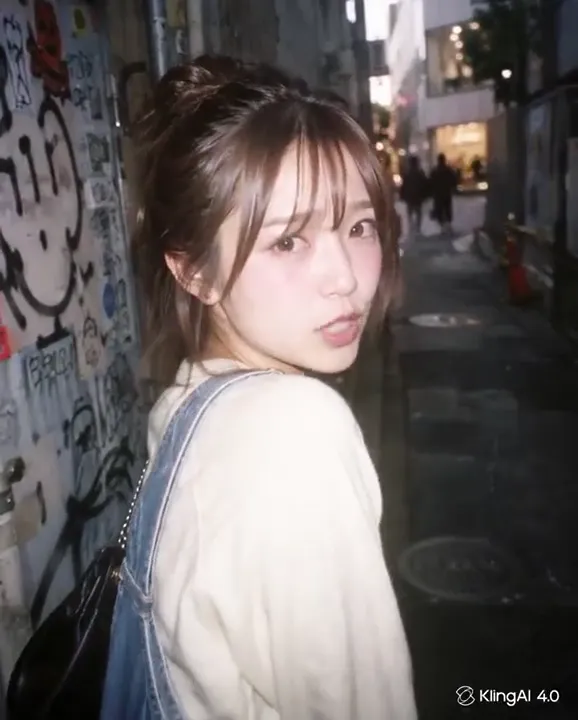
Add one image as the first frame and Kling 4 brings it to life, keeping the shape of your photo: a vertical phone shot gives a vertical clip, a wide landscape gives a wide one. Try a street portrait that turns to the camera, a plate of food with rising steam, or a sleeping cat that wakes up. Your prompt only needs the motion and the sound.
04Five lengths, 3 to 15 seconds
Choose 3, 5, 8, 10 or 15 seconds. Three seconds is enough for a quick test of a prompt, a loop or a reaction; 15 seconds holds a short scene with a setup and a payoff. Write one idea per clip, open on the subject so the first frame already tells the story, and land the payoff before the last second.
05Four ratios from text
Without an image, choose the frame yourself: 9:16 for TikTok, Reels and Shorts, 16:9 for YouTube, 1:1 for feeds, or 21:9 for a wide cinematic strip. Every ratio works with every length from 3 to 15 seconds, and the clip renders in 720p whichever shape you pick.
06720p, ready for phones
Kling 4 renders every clip in 720p on this site, in all modes and at every length. There is a single quality setting, so the settings menu only asks for the length, plus the shape in text mode. For clips watched on phones and in social feeds, where most short videos end up, 720p holds up well.